1. Getting Started
Login
Navigate to your OpenMES URL. Enter your username and password, then click Sign In. If registration is enabled, you can create a new account via the "Create account" link.
Registration
New users register with a name, username, email and password. By default, new accounts receive the Operator role. An administrator can later change the role.
First Steps After Login
As an
Admin, the recommended setup order is:
- Create a Production Line (where products are made)
- Create a Product Type (what you produce)
- Define a Process Template with steps (how you produce it)
- Create your first Work Order (a production job)
2. Dashboard
The Admin Dashboard provides a real-time overview of your production.
KPI Cards
| Card |
Description |
| Total Work Orders | docs_s2_kpi1 |
| In Progress | docs_s2_kpi2 |
| Pending | docs_s2_kpi3 |
| Blocked | docs_s2_kpi4 |
| Done Today | docs_s2_kpi5 |
| Open Issues | docs_s2_kpi6 |
| Blocking Issues | docs_s2_kpi7 |
| Active Lines | docs_s2_kpi8 |
Use the Line Filter dropdown to filter KPIs by a specific production line. The dashboard also shows Recent Work Orders with their status and progress bar, Open Issues requiring attention, and Quick Links to common actions.
3. Production Lines
Navigation: Sidebar > Production > Lines
A production line represents a physical area in your factory where products are manufactured.
Creating a Line
- docs_s3_step1
- docs_s3_step2
- docs_s3_step3
Managing a Line
- docs_s3_m1
- docs_s3_m2
- docs_s3_m3
- docs_s3_m4
- docs_s3_m5
4. Product Types
Navigation: Sidebar > Production > Product Types
Product types define the categories of products you manufacture.
Process Templates
Each product type can have one or more Process Templates — these define the sequence of manufacturing steps. Add Template Steps in order with a name, step number, estimated duration, and optional required role. When a work order is created, the active process template is "snapshotted" — so later changes to the template don't affect existing orders.
5. Work Orders
Navigation: Sidebar > Orders > Work Orders
A work order is the central entity — it defines what to produce, how many, where, and by when.
Creating a Work Order
Click + New Work Order and fill in: Order Number, Product Name, Planned Quantity, Line, Product Type, Priority (1–5), and Due Date.
Work Order Lifecycle
PENDING → ACCEPTED → IN PROGRESS → DONE
                   ↘ PAUSED → resumed → IN PROGRESS
                   ↘ BLOCKED
         ↘ REJECTED
         ↘ CANCELLED
| From |
To |
Who |
Notes |
| Pending | Accepted | Supervisor / Admin | docs_s5_t1 |
| Pending | Rejected | Supervisor / Admin | docs_s5_t2 |
| Accepted | In Progress | Supervisor / Admin | docs_s5_t3 |
| In Progress | Paused | Supervisor / Admin | docs_s5_t4 |
| In Progress | Blocked | System / Admin | docs_s5_t5 |
| In Progress | Done | Supervisor / Admin | docs_s5_t6 |
| Paused | In Progress | Supervisor / Admin | docs_s5_t7 |
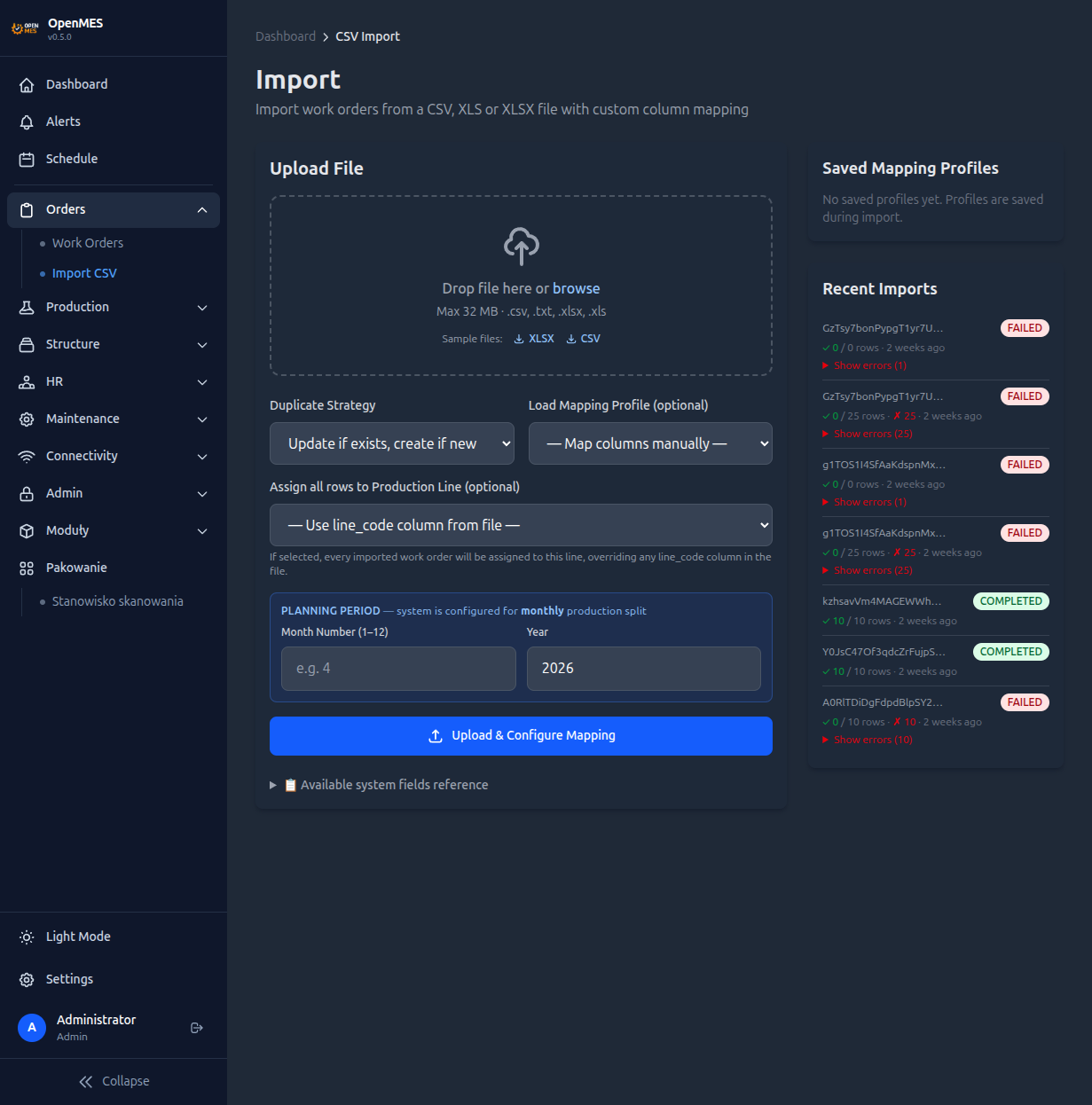
6. CSV / Excel Import
Navigation: Sidebar > Orders > CSV Import
Import work orders in bulk from CSV, XLS or XLSX files.
Import Process
- docs_s6_step1
- docs_s6_step2
- docs_s6_step3
- docs_s6_step4
- docs_s6_step5
Saved Mappings: You can save column mappings as profiles for repeated imports with the same file format. Select a saved mapping before uploading to auto-fill the column mapping.
7. Issues & Quality
Navigation: Sidebar > Orders > Issues
Issues track quality problems, equipment failures, or any production anomalies.
Issue Types
Before creating issues, define issue types (e.g., "Machine Failure", "Quality Defect", "Material Shortage"). Navigate to Orders > Issue Types to manage them.
Issue Lifecycle
OPEN → ACKNOWLEDGED → RESOLVED → CLOSED
- docs_s7_l1
- docs_s7_l2
- docs_s7_l3
- docs_s7_l4
8. Schedule & Shifts
Weekly Schedule
Navigation: Sidebar > Schedule
The schedule view displays work orders on a weekly calendar grid, organized by production line. Use the Previous/Next buttons to navigate weeks, or click Today to jump to the current week.
Shifts
Navigation: Sidebar > Admin > Shifts
Define work shifts with start and end times (e.g., Morning: 06:00–14:00, Afternoon: 14:00–22:00, Night: 22:00–06:00). The system tracks which shift is currently active.
9. Users & Roles
Navigation: Sidebar > Admin > Users
Account Types
| Type | Purpose |
|---|
| User | docs_s9_type1 |
| Workstation | docs_s9_type2 |
Roles
| Role | Access |
|---|
| Admin | docs_s9_role1 |
| Supervisor | docs_s9_role2 |
| Operator | docs_s9_role3 |
10. Reports
Navigation: Sidebar > Orders > Reports
- docs_s10_r1
- docs_s10_r2
- docs_s10_r3
- docs_s10_r4
Filter reports by: production line, date range, or week/month/year.
11. Audit Logs
Navigation: Sidebar > Admin > Audit Logs
Every change in the system is logged: who made the change, what was changed (entity type and ID), when (timestamp), and old values vs new values.
Use audit logs for compliance and traceability, investigating unexpected changes, and tracking user activity. Export to CSV for external archiving.
12. Machine Connectivity (MQTT)
Navigation: Sidebar > Connectivity
OpenMES can connect to industrial machines via MQTT protocol.
Setting Up MQTT
- docs_s12_step1
- docs_s12_step2
- docs_s12_step3
- docs_s12_step4
13. Modules
Navigation: Sidebar > Modules
OpenMES supports a plugin system for extending functionality.
- docs_s13_l1
- docs_s13_l2
- docs_s13_l3
14. Settings
- docs_s14_l1
- docs_s14_l2
- docs_s14_l3
- docs_s14_l4
15. Operator View
The operator interface is designed for shop floor use:
- docs_s15_step1
- docs_s15_step2
- docs_s15_step3
- docs_s15_step4
Batch Execution
Open a work order, click Create Batch to start a production run, then execute steps one by one (Start → Complete). Each step tracks: who executed it, start time, end time, and duration.
16. Supervisor View
Supervisors have a focused dashboard with KPI cards filtered by their assigned lines, work order management (accept, reject, pause, resume, complete), issue management (acknowledge, resolve, close), and reports for their lines. Supervisors cannot manage system settings, users, or modules — those are Admin-only features.
17. REST API
OpenMES provides a full REST API at /api/v1/ for integration with external systems.
Authentication
# Login (returns token)
curl -X POST https://your-domain.com/api/auth/login \
  -d "username=admin&password=YourPassword"

# Use token in subsequent requests
curl -H "Authorization: Bearer YOUR_TOKEN" \
  https://your-domain.com/api/v1/work-orders
Available Endpoints
| Resource |
Methods |
Description |
/api/v1/lines | GET | docs_s17_e1 |
/api/v1/work-orders | GET, POST, PUT, DELETE | docs_s17_e2 |
/api/v1/work-orders/{id}/batches | GET, POST | docs_s17_e3 |
/api/v1/batch-steps/{id}/start | POST | docs_s17_e4 |
/api/v1/batch-steps/{id}/complete | POST | docs_s17_e5 |
/api/v1/issues | GET, POST, PUT, DELETE | docs_s17_e6 |
/api/v1/issue-types | GET, POST, PUT | docs_s17_e7 |
/api/v1/analytics/overview | GET | docs_s17_e8 |
/api/v1/reports/production-summary | GET | docs_s17_e9 |
/api/v1/audit-logs | GET | docs_s17_e10 |
18. Installation
Docker (recommended)
git clone https://github.com/Mes-Open/OpenMes.git
cd OpenMes
cp .env.example .env
# Edit .env — set POSTGRES_PASSWORD, ADMIN_PASSWORD, DOMAIN
docker compose up -d
The application will be available at the configured domain or http://localhost.
Apache2 (manual)
git clone https://github.com/Mes-Open/OpenMes.git /var/www/openmmes
cd /var/www/openmmes/backend
composer install --no-dev --optimize-autoloader
npm ci && npm run build
cp .env.example .env
php artisan key:generate
# Edit .env — configure DB_*, APP_URL
php artisan migrate --force
php artisan db:seed
chown -R www-data:www-data storage bootstrap/cache
Configure Apache virtual host to point DocumentRoot to /var/www/openmmes/backend/public.
Tire Production Workflow Example
This walkthrough demonstrates a complete production scenario — from Admin setup through Supervisor management to Operator shop floor execution — using automotive tire manufacturing as the example.
Scenario:
AutoRubber Inc. needs to produce 500 P225/65R17 All-Season Tires for a client, due in 5 days.
Part 1: Admin — System Setup
The Admin configures the system once. After that, Supervisors and Operators work within this structure daily.
docs_ex_lines_title
| Code | Name | Description |
|---|
MIX-01 | Mixing Line | docs_ex_line1 |
BUILD-01 | Building Line 1 | docs_ex_line2 |
CURE-01 | Curing Line | docs_ex_line3 |
QC-01 | Quality Control | docs_ex_line4 |
docs_ex_template_title
| # | Name | Est. Duration | Description |
|---|
| 1 | Rubber Compound Mixing | 45 min | docs_ex_step1 |
| 2 | Component Preparation | 30 min | docs_ex_step2 |
| 3 | Tire Building | 20 min | docs_ex_step3 |
| 4 | Curing / Vulcanization | 15 min | docs_ex_step4 |
| 5 | Quality Inspection | 10 min | docs_ex_step5 |
| 6 | Final Marking & Packaging | 5 min | docs_ex_step6 |
docs_ex_csv_title
Part 2: Supervisor — Production Management
docs_ex_accept_title
docs_ex_monitor_title
Part 3: Operator — Shop Floor Execution
docs_ex_login_title
docs_ex_queue_title
docs_ex_batch_title
docs_ex_progress_title
The Complete Flow
  ADMIN SETUP
  Lines → Product Types → Process Templates → Issue Types
  Shifts → Users → Work Orders (or CSV Import)
          ↓
  SUPERVISOR FLOW
  PENDING —Accept—> ACCEPTED —Start—> IN PROGRESS
                                          ↓
                                PAUSED / BLOCKED / DONE
          ↓
  OPERATOR FLOW
  Select Line → Work Queue → Open Work Order
                                      ↓
                              Create Batch (target qty)
                                      ↓
                             Execute Steps 1→2→3→4→5→6
                                      ↓
                             Create Next Batch (repeat)
Integration with External Systems
ERP Integration (SAP, Comarch, Enova, Odoo)
Use the CSV/XLS Import feature or the REST API to push orders programmatically from your ERP. Pull production results back via the Reports API.
# Push order from ERP
curl -X POST https://your-openmes.com/api/v1/work-orders \
  -H "Authorization: Bearer YOUR_TOKEN" \
  -H "Content-Type: application/json" \
  -d '{"order_no":"SAP-4500012345","product_name":"P225/65R17","planned_qty":500,"priority":4,"due_date":"2026-05-01"}'
E-commerce Integration
OpenMES has a PrestaShop connector module that synchronizes shop orders into production orders. Customer places order → connector creates a Work Order → production completes → status syncs back.
Machine Connectivity (MQTT / IoT)
Connect directly to factory machines via MQTT. Your PLCs/SCADA publish data to an MQTT broker, OpenMES subscribes and maps incoming data to quality checks or automated alerts.
Ready to Try OpenMES?
Explore the live demo or deploy your own instance in minutes with Docker.